Adding people, roles and guests
The four ways into a Deskly office - an account an admin creates, a join link, a pasted list and a guest pass - and how roles and teams decide what each person can do.
5 min read
Add one person
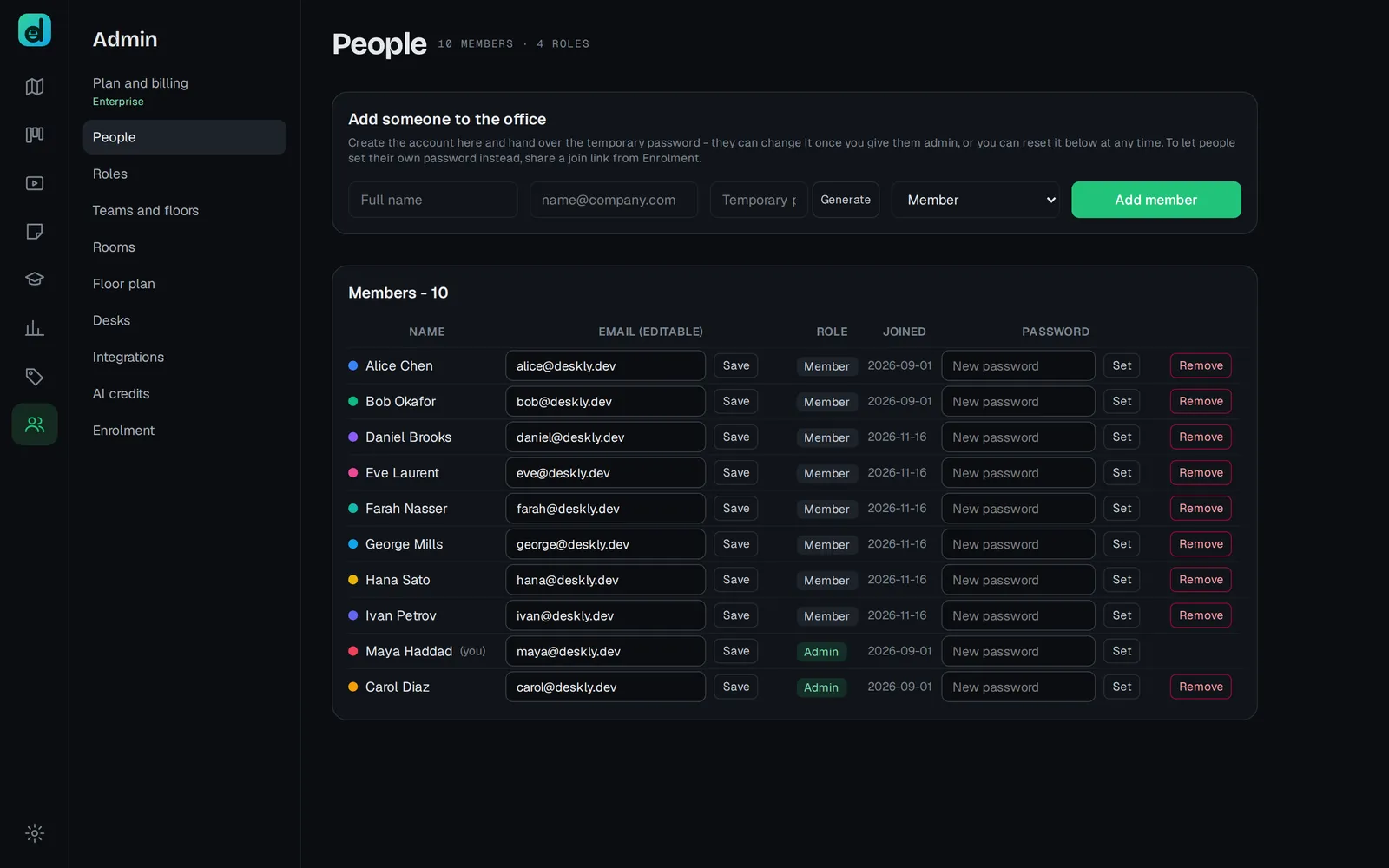
Admins add people one at a time in People.
- Open Admin, then People.
- Under Add someone to the office, fill in Full name, the email address and a Temporary password of at least 8 characters. Generate makes one that is easy to read out. They can change it in Settings, under Password.
- Choose the role, Member or Admin.
- Choose Add member. The page confirms it and shows the password once more.
- Hand over the email and password yourself, somewhere private. Deskly does not send them.
Everyone new starts on the common floor.
Every account takes a seat. When the plan's seats are used up, adding someone fails with a message pointing to Plan and billing, where an admin can move to a bigger office size. The Free plan has five seats.
Let people sign themselves up with a join link
A join link lets people create their own account with a password they choose. It works on every plan, and a team lead or an admin can make one.
- Stand on the floor you want people to join, then open Admin and Enrolment.
- Under the join link, give it a name such as "Spring cohort".
- Set the seats and the days until it expires. Both start at 30, and 0 means no limit.
- Choose Create join link, then Copy link, and share it.
Whoever opens the link enters their name, email and a password - at least 10 characters, with upper and lower case and a number - and chooses Join. They land on that floor. Revoke closes a link early.
Add a whole list at once
On the same Enrolment page, use Paste a roster: one person per line, an email and, after a comma, an optional name - up to 200 people at a time. Choose Enrol these people.
The temporary passwords are shown once. Copy them before you leave the page; after that they can only be reset. Ask people to change theirs in Settings, under Password, when they first sign in.
An address that already has a Deskly account in another office is not added; the page says how many were skipped. Enrol those people with a different address.
Roles and teams
Every office starts with four roles: Admin and Member for the whole office, and Lead and Member on each floor. In Roles you can rename them and tick what each may do.
A team is a floor of its own, with its own rooms, chat and boards. In Teams and floors, choose Add to team to put someone on a floor as a Lead or a member. The Free plan has one floor; the Office plans have more.
Guests
A guest pass lets someone without an account into one room. It needs the Office or Enterprise plan.
- Open Admin, then Rooms.
- Under the room's Guest access, add a Guest label and how long it is Valid for (hours) - up to 720.
- Choose Create guest link and send it.
The guest types their name and chooses Join the room. They cannot leave that room, see analytics or see the rest of the office. One link admits up to 20 guests.
Questions
Can I make an existing member an admin? Not from People. The office role is chosen when the account is created. Floor roles can change at any time from Teams and floors.
How do I remove someone? Choose Remove in their row in People. Their presence history is deleted too. You cannot remove yourself or the last admin.
"That email is already registered". The address already has a Deskly account, and one address cannot hold two. A join link refuses it too. If the person is already in your office and you want them on another floor, use Add to team in Teams and floors.