Setting up your office, for admins
Everything an admin sets up, in the order that saves rework: the office itself, floors and teams, rooms, people and roles, connected tools, and the plan.
6 min read
Where the admin pages are
Everything below lives under Admin, in the rail on the left of the app, or under More in the office in the Manage the office group. Admins see all of it; a role you give someone else can open parts of it.
1. The office itself
Open Office settings.
- Office name - shown at the top of every page and in invitations.
- Office timezone - used for reports and room schedules when someone has not set their own.
- Idle after (minutes) - with no input for this long, someone turns idle and stops counting hours. Anything from 5 to 120; it starts at 20.
- Office colours - changes the colours of every room for everyone. Each person still picks light or dark for themselves.
2. Floors and teams
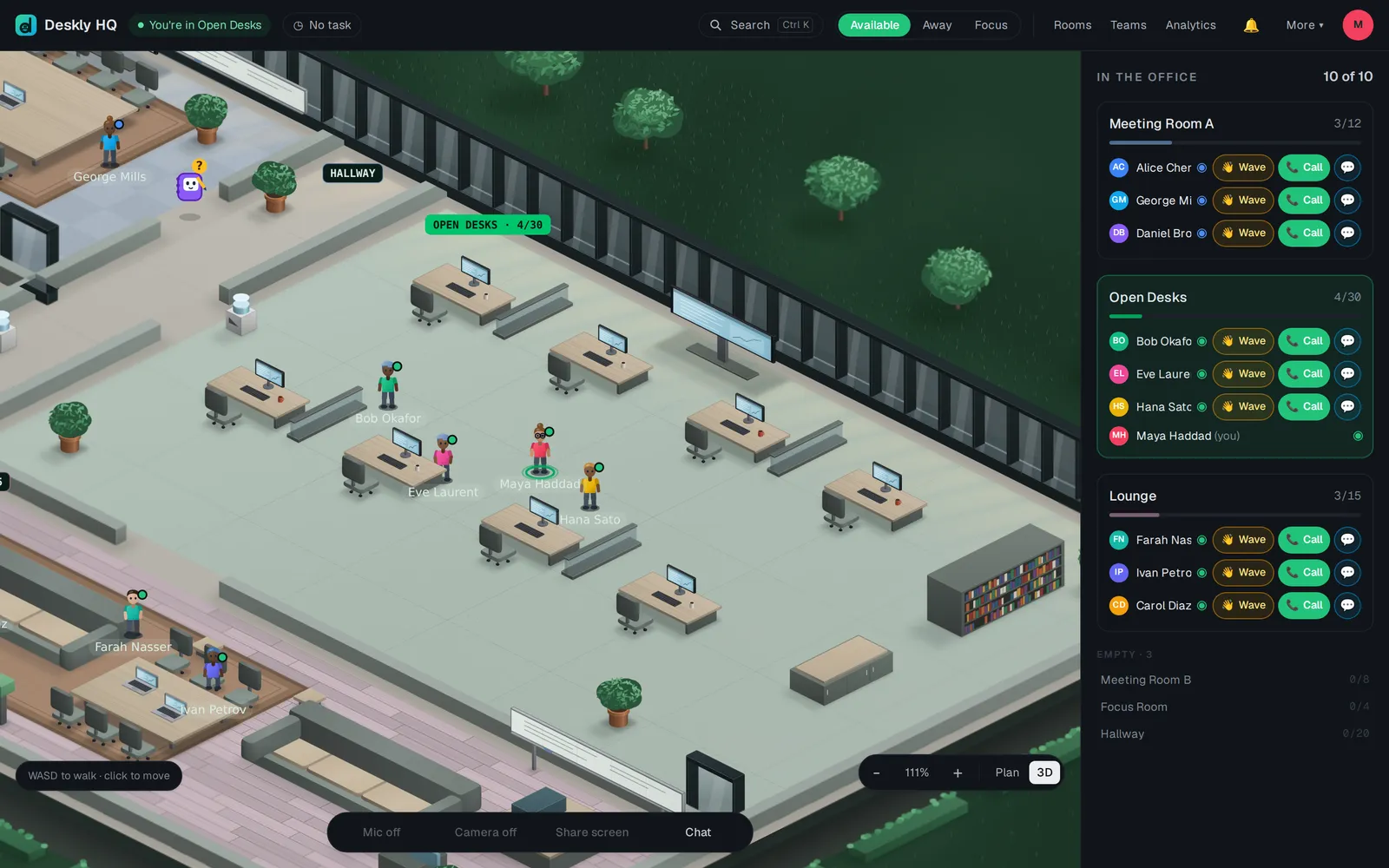
A team is a floor of its own, with its own rooms, chat, boards and recordings. People only see and hear whoever is on the same floor. The common area is the one floor everybody may enter.
- In Teams and floors, press New team and give it a Team name.
- Start it on the Standard floor, or copy the layout of a floor you already have.
- Press Create team, then Add to team for each person. Make someone Lead to let them run that floor.
- If you use Azure DevOps, set Board notes file into to the project this floor's board notes belong in. Filing notes from a board works with Azure DevOps only.
Free holds one floor. Office sizes hold 2 to 20, by size. Deleting a team takes its floor, rooms, boards, chat and recorded time with it.
3. Rooms and the floor plan
- Rooms - rename a room, set its Capacity, and add regular meetings with Add meeting. Renaming shows immediately for everyone, and analytics keep their history.
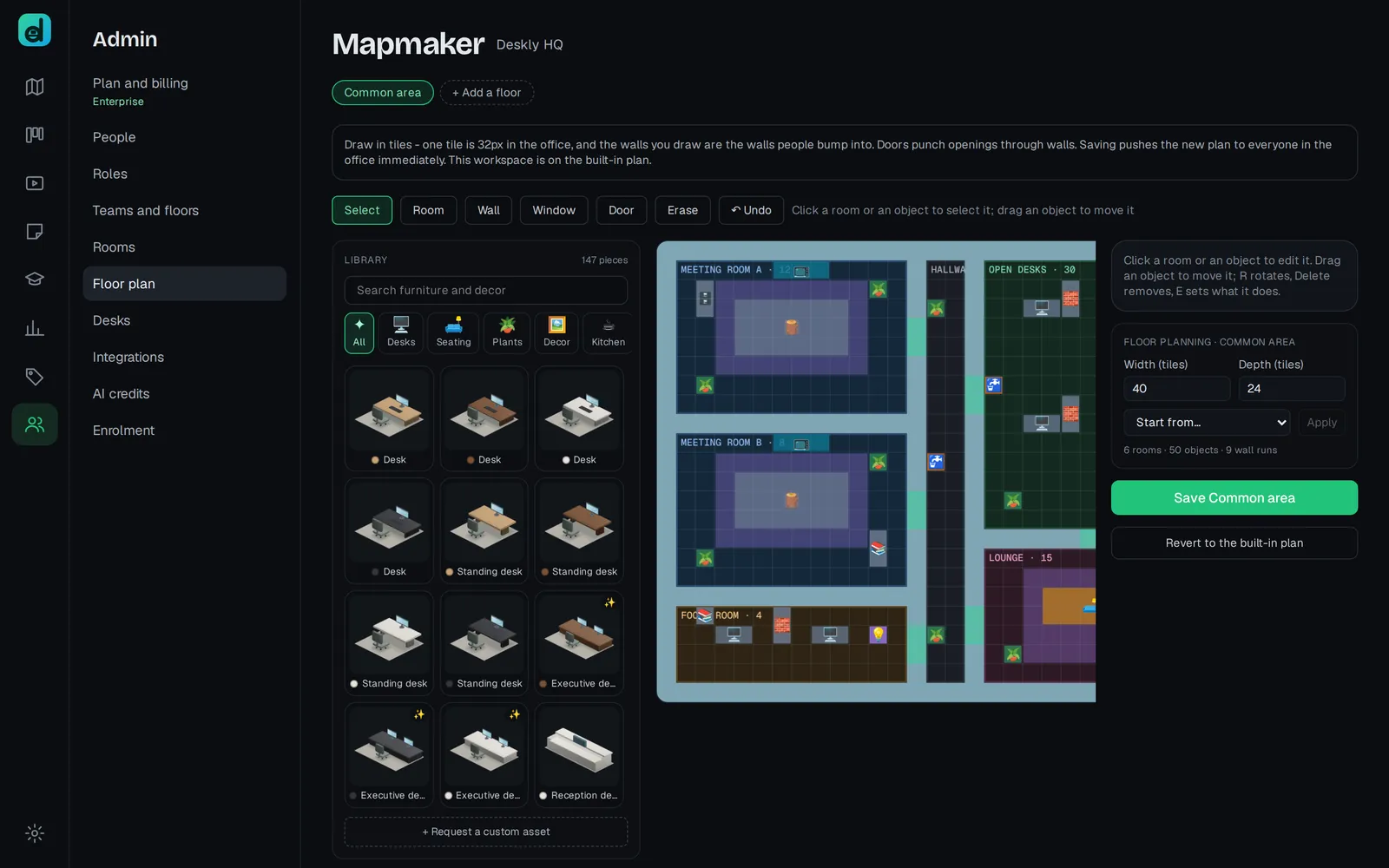
- Floor plan - the Mapmaker. Draw with Room, Wall, Window and Door, arrange furniture from the Library, and save. Saving pushes the new plan to everyone in the office at once. Revert to the built-in plan undoes your edits.
- Guest passes (Office plans) - in Rooms, give a pass a Guest label and Valid for (hours), then Create guest link. A guest joins that one room only, without an account.
Room kinds matter. Meeting rooms, focus rooms, lounges and classrooms carry audio; desks and halls are open floor with none.
4. People and roles
- In People, use Add someone to the office with a name, email and Temporary password, then Add member. Hand the password over yourself.
- To let people sign themselves up onto a floor, use Create join link in Enrolment.
- To reset a password, type a New password beside the person and press Set.
- Remove takes someone out, and deletes their presence history too. The last admin cannot be removed.
In Roles, rename the built-in roles - Admin, Lead and Member - to match your own, and tick what each may do: add people, manage floors, rename rooms, edit the floor plan, connect tools, see and change the plan, or read everybody's hours. Permissions follow the ticks, never the name.
5. Connected tools
In Integrations:
- Calendars - if Google or Microsoft is not yet set up for your office, paste the client ID and secret and whitelist the redirect URI shown. People then connect their own calendars from Calendar.
- Trackers - connect Jira or Azure DevOps, choose the projects, and match people under Who is who.
Secrets are encrypted before they are stored and never shown again. Calendar sync and trackers are part of the Office plans.
6. The plan
Plan and billing shows your plan, seats used and payments, and is where you change size, buy AI credit packs or add Extended storage for recordings. AI credits shows what is left this month and who used it.
Every new office starts on a free trial of the Office features. When it ends nothing is deleted; the paid features pause until you choose a plan.