Switching between English and Arabic
How to switch Deskly between English and Arabic, what changes when you do, and what stays in the language it was written in.
3 min read
Switch the language
Deskly comes in English and Arabic. It opens in English until you choose otherwise.
- Open Settings and go to Display.
- Press the language button. In English it reads العربية; in Arabic it reads English.
- The page reloads in the other language.
The same button is in More in the office, in the header of the public pages, and on the sign-in page, so you can switch before you sign in.
Your choice is kept in this browser, like light or dark mode. On another browser or computer, switch it there too.
What changes in Arabic
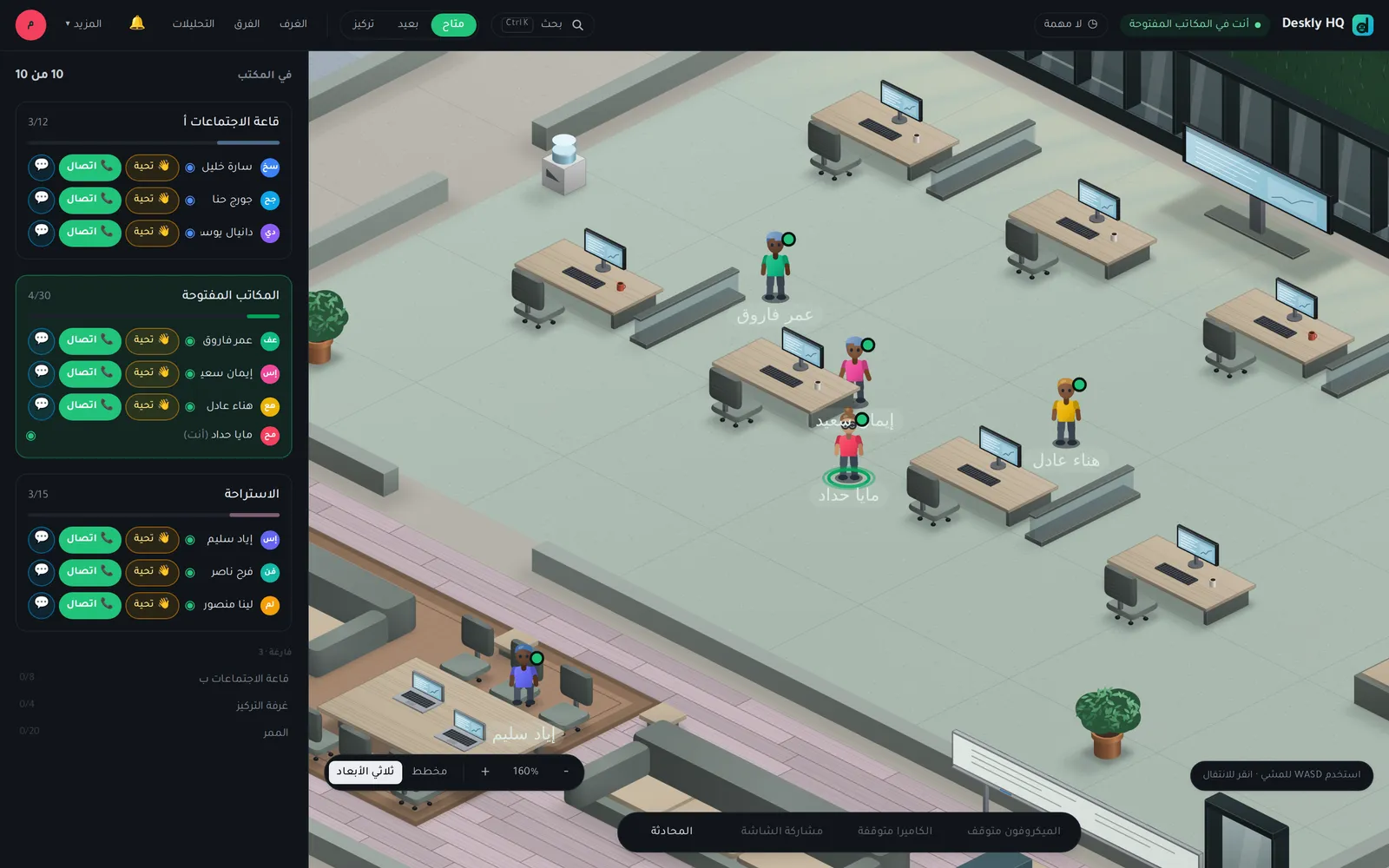
The whole interface turns right to left: menus, the rail, the roster, forms and tables are mirrored, and text reads from the right. Names, version numbers and other Latin text stay left to right inside an Arabic line.
What is translated
- The app itself: the office, settings, admin pages, analytics and billing.
- The help articles, guides and blog.
- The legal pages.
- Emails you ask for, such as the password reset code, which comes in the language of the page you asked from.
What stays as written
Anything people type stays in the language they typed it in: chat messages, board notes, meeting names, and the names an admin gives rooms and teams. To have Arabic room names, rename the rooms in Rooms.
Questions
Can different people use different languages? Yes. The language belongs to each person's browser, not to the office. One person can work in Arabic while the rest of the team uses English.
Can the office default to Arabic for everyone? No. Each person chooses for themselves.