Fixing sound, microphone and camera problems
What to do when nobody can hear you, you cannot hear anyone, the microphone or camera is blocked, or the call keeps breaking up.
4 min read
First, check where you are standing
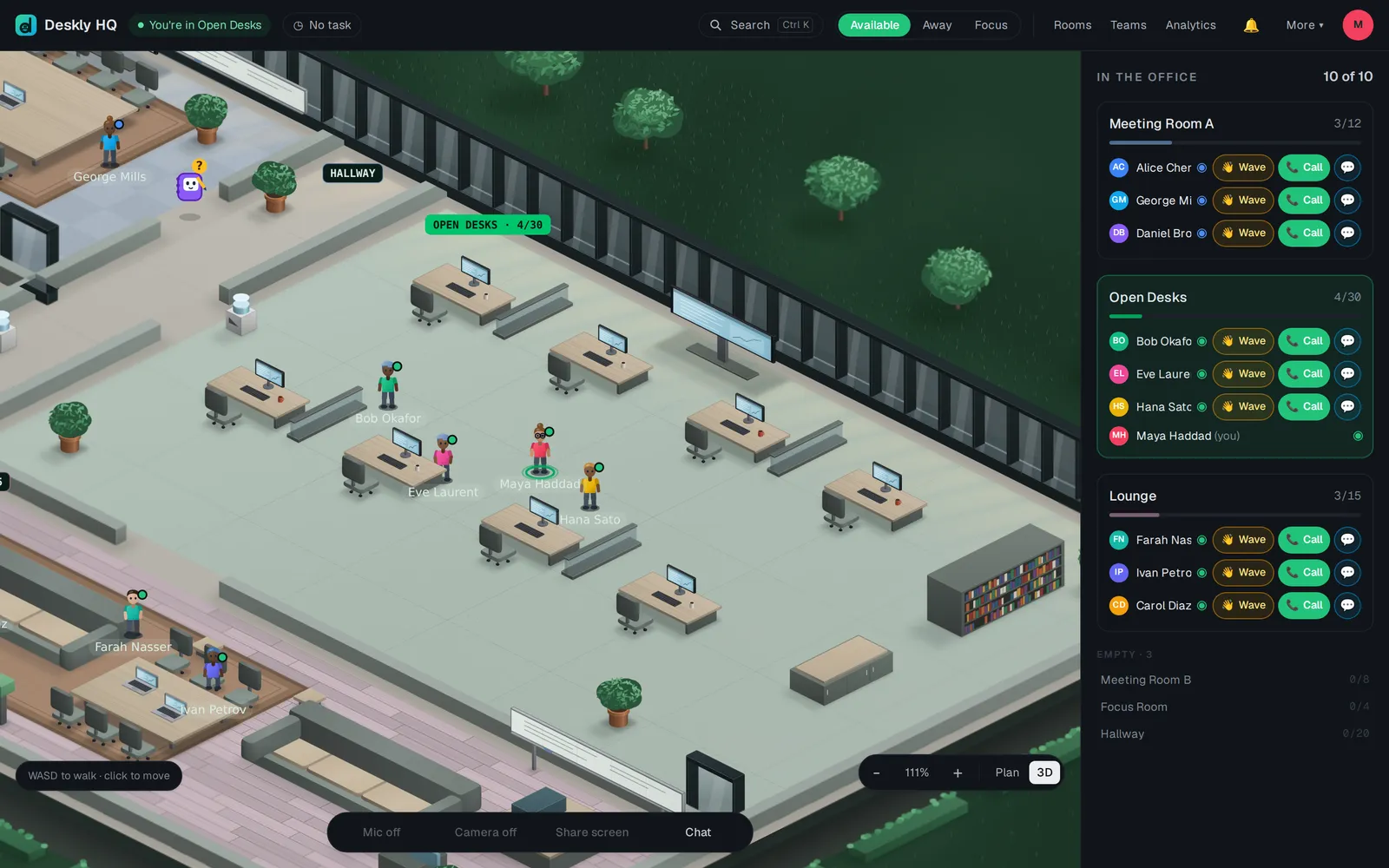
Audio belongs to rooms. The open desks and the hallway carry no sound at all, on purpose, so a busy office is not a wall of noise. On the open floor the microphone button says Step into a room to use the mic.
Walk into a meeting room, focus room, lounge or classroom. That is the call - there is nothing to start.
The microphone is blocked
The browser asks once. If you refused, it remembers the refusal and Deskly cannot undo it.
- Click the padlock or site icon in the address bar.
- Allow the microphone (and the camera) for this site.
- Press Try again, or Reload.
In Safari, allow it under Settings › Safari › Microphone, or in the page settings in the address bar, then reload.
Other messages and what they mean:
- No microphone was found on this device. Plug one in, or check it is switched on.
- Another app is using the microphone. Close the other call app and try again.
- Your microphone is on, but nothing is going out yet. Give it a moment; if it stays, reload.
You cannot hear the others
- If you see Tap to hear the room, tap it. The browser waits for a click before it plays sound.
- Check you are in the same room as the people talking. Rooms do not hear each other.
- Check your computer's output device and volume.
Your mic switched itself off
- Someone in the meeting muted you. You see who, and you can turn it back on whenever you are ready.
- In a class, the instructor can mute everyone until they allow it. The button says Muted by the instructor.
- You went Away. The mic is muted while you are away; turn it on again when you are back.
The call breaks up
Usually the network rather than the computer. Move closer to the router or use a cable, and close other tabs running video calls.
Then turn on Lite mode from More. It drops the cameras and keeps the voice and the shared screen, which is almost always the right trade. When Deskly sees your connection struggling it offers it by itself: press Switch. Your choice is remembered on that device.
Lite mode also turns on by itself when the browser reports a slow connection or Data Saver.
Questions
My camera will not turn on. If the button says Cameras are off in lite mode, you are in Lite mode. Press Lite on in More to allow them again.
The others see a black window when I share. Some apps protect their windows from capture. Share the whole screen, or a browser tab, instead.
Still stuck? Open Help & feedback, choose Report a bug, and send it with Include page details to help us find it ticked. It tells us your browser and the room you were in.