Chat, channels and direct messages
Where the conversations live, how to start one, and what you can do with a message - files, voice notes, reactions, threads and saved messages.
5 min read
Opening the chat
Choose Chat in the room controls. The number on it counts what is waiting for you: direct messages, channels you are in, and General and the room you are standing in on this floor.
The panel has two tabs, Channels and Direct.
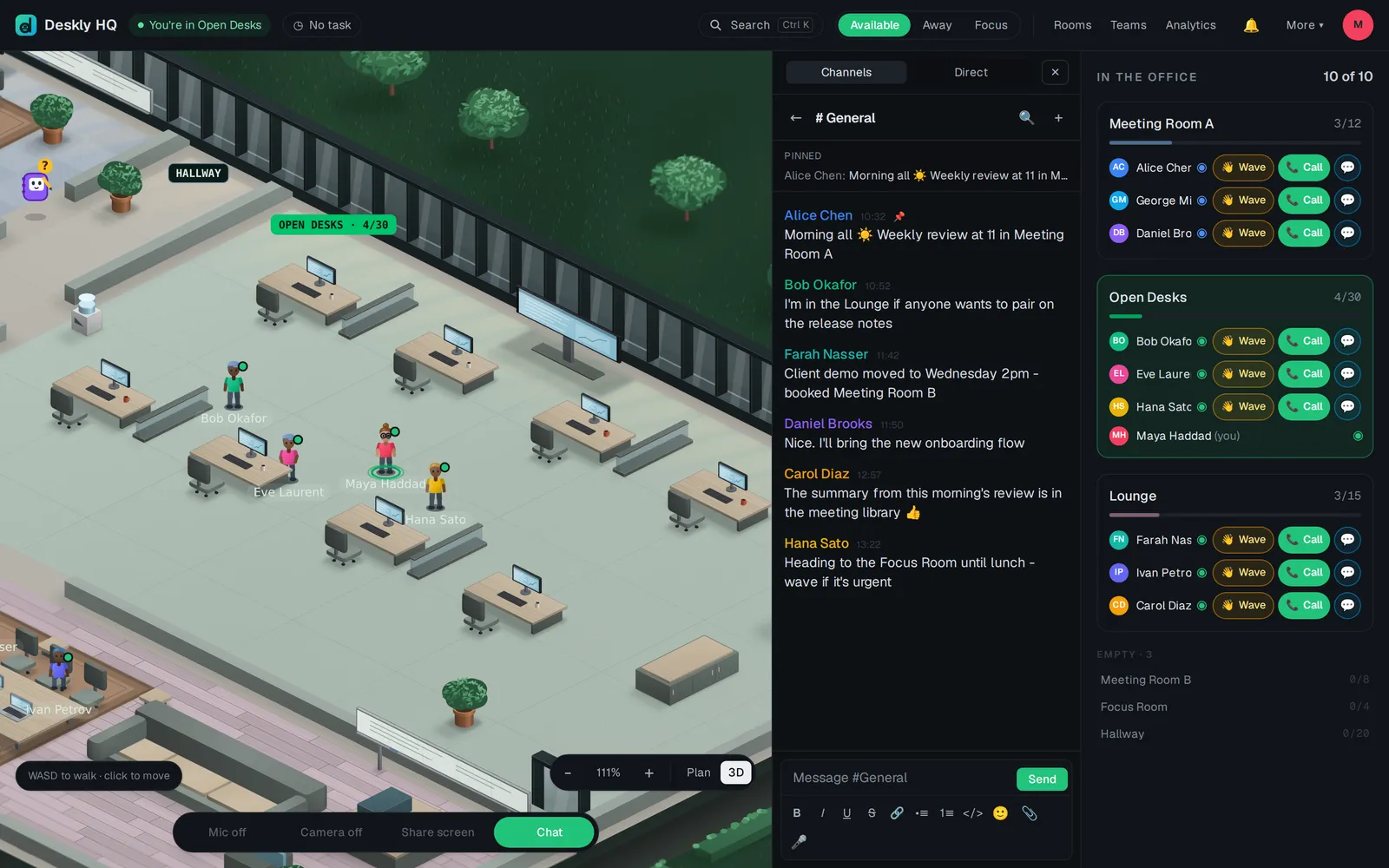
Channels
- This floor holds General and a channel for each room on your floor. People on another floor have their own.
- Above it are the channels for the whole office: Support, then the channels you have joined, grouped by department.
- More channels to join lists public channels you are not in. Open one to read it; post in it, or join from ⚙, to be told about new messages.
To make a channel:
- In the channel list, choose + New.
- Give it a Name and, if you like, a Department - channels are grouped by it.
- Tick Private if only the people you add should see it or find it, and use Add people.
- Choose Create channel.
Any member can create a channel. Only the person who made it, or an admin, can archive it with Archive channel.
Direct messages
A direct message is a private conversation between two people. Start one in any of these ways:
- Message next to a name in the roster.
- Message on someone's card, when you rest the mouse on their avatar.
- The Direct tab, then Find a person.
When the other person has read your message, you see Seen - unless they have turned off Send read receipts in Settings, under Privacy.
Writing a message
- Enter sends. Shift Enter starts a new line.
- Type @ and a name to mention someone. Choose from the list that appears.
- Use the formatting buttons for bold, italic, lists, code and links.
- Attach a file or image adds a file. A file that is too large is refused with a message that says the limit.
- Record a voice note records from your microphone. Choose Stop when you have finished, then send it.
A message you have not sent yet is kept as a draft in that conversation, so you can switch away and come back to it.
Doing more with a message
Hold the pointer over a message to see what you can do:
- Add reaction puts an emoji on it.
- Reply in thread keeps a side conversation out of the main channel.
- Pin keeps it at the top of the conversation, under Pinned.
- Save for later puts it in Saved messages, which only you can see. Remove from saved takes it out.
Search messages looks through what you can read. Type at least two letters. Inside a conversation it searches that one first; choose Search every channel instead to widen it.
Questions
I am not told about new messages in a channel. You are looking in rather than a member. Post a message or join from ⚙.
I cannot find a channel a colleague mentioned. It is private, or it belongs to another floor. Ask someone in it to add you.
Can I choose what notifies me? Yes. In Settings, under Notifications, switch Messages and Mentions on or off.