Booking rooms and connecting your calendar
How to book a room for a meeting, connect Google or Outlook so your meetings show up in the office, and what Deskly can and cannot see in your calendar.
4 min read
Book a room
Booking a room works on every plan.
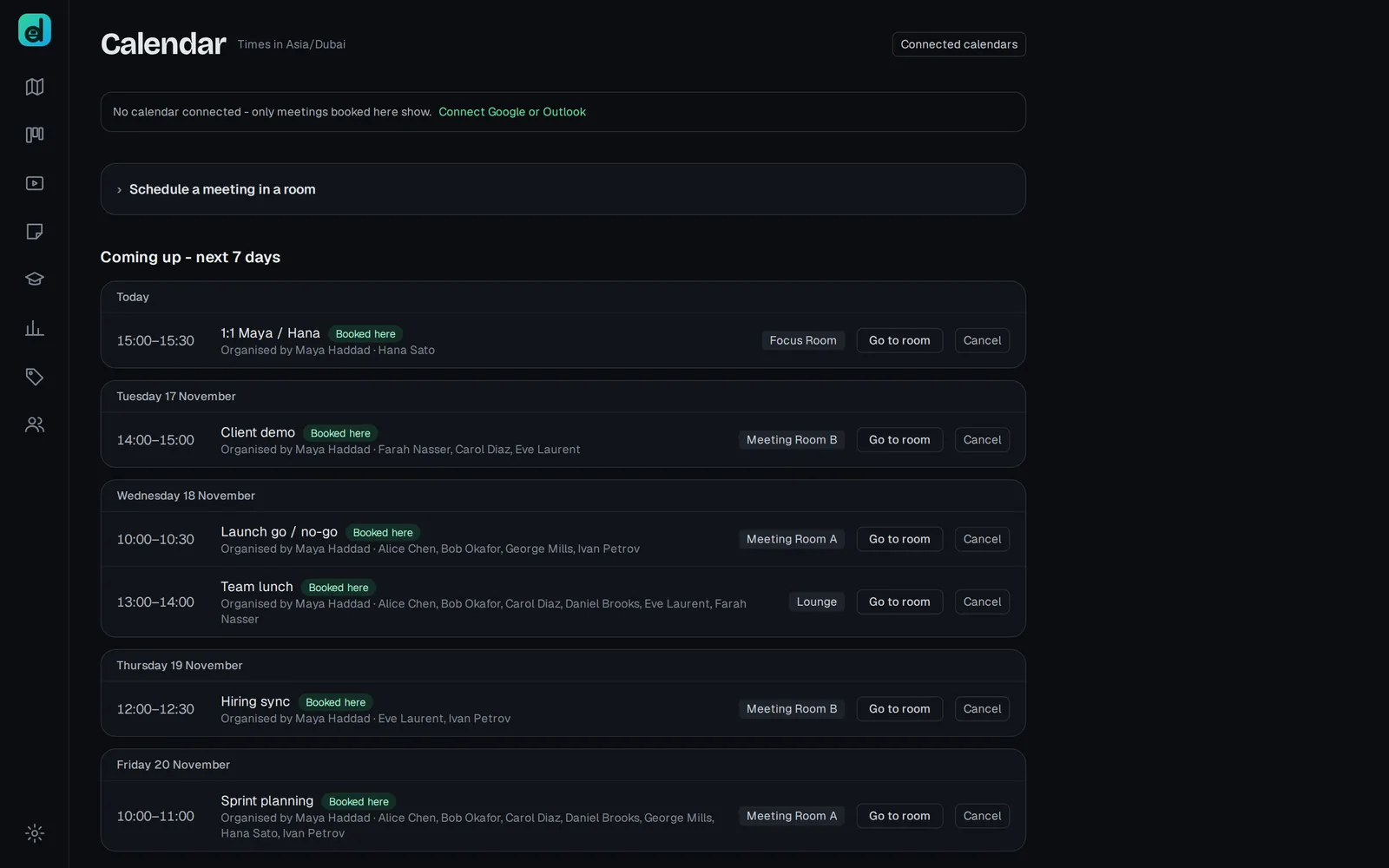
- In the office, open More and choose Calendar.
- Open Schedule a meeting in a room.
- Fill in Meeting name, Date, Starts and Length.
- Under Invite people, type a name and pick the person. Repeat for everyone.
- Under Room, pick a room. Deskly checks which rooms are free at that time, and marks one that is "Free, but small for this many".
- Press Book room.
The meeting appears under Coming up - next 7 days, and everyone you invited gets a reminder in the office. When it is about to start, a banner with Join walks you straight into the room.
A booking can be up to 8 hours long and up to 90 days ahead. To call one off, press Cancel beside it.
Connect Google or Outlook
Calendar connections are part of the Office plans and Enterprise.
- On Calendar, press Connected calendars.
- Press Connect beside Google Calendar or Outlook Calendar, and allow access on the provider's page.
- Back in Deskly, your meetings show alongside the ones booked here.
When an event's title or location names one of your rooms, its reminder gets a Join button. For an event with no room, choose Set to put it in one.
What Deskly can see
- It reads your events for the next day and a half: the title, the time and the location.
- Only you see your events. If you put one in a room, others see that room as Reserved at that time, not what the meeting is.
- If you allow it, rooms you book in Deskly are added to your calendar and the people you invite get the invitation by email. Turn this on or off with Add them and Stop adding them.
- It never changes or deletes any other event.
Disconnect removes the connection and every event copied from it. To remove Deskly's access on the provider's side too, use the "Manage access" link on the same page.
Microsoft Teams status
With Outlook connected, Turn on under Microsoft Teams status shows you as Busy in Teams while you are in a meeting or class in the office. It only ever sets Busy, and never reads your chats or calls.
Admins can also give a room a regular meeting, such as a daily standup, from Rooms with Add meeting. Everyone in the office is nudged when it is about to start.
Common problems
The page says no calendar provider is configured. Nobody has set one up for your office yet. An admin does it in Integrations with a client ID and secret from Google or Microsoft.
My calendar shows "Read-only". Deskly can show your events but not add bookings. Press Reconnect and allow it to add events.
A calendar shows "sync problem". Open Connected calendars and press Reconnect, or Sync now.
"Someone just took that room". Another booking landed first. Pick another time or room.