Running better meetings in Deskly
A meeting in Deskly is people standing in the same room. This guide covers booking the room, getting people in, using the board, recording with consent, and turning the summary into follow-ups.
5 min read
Before: book the room
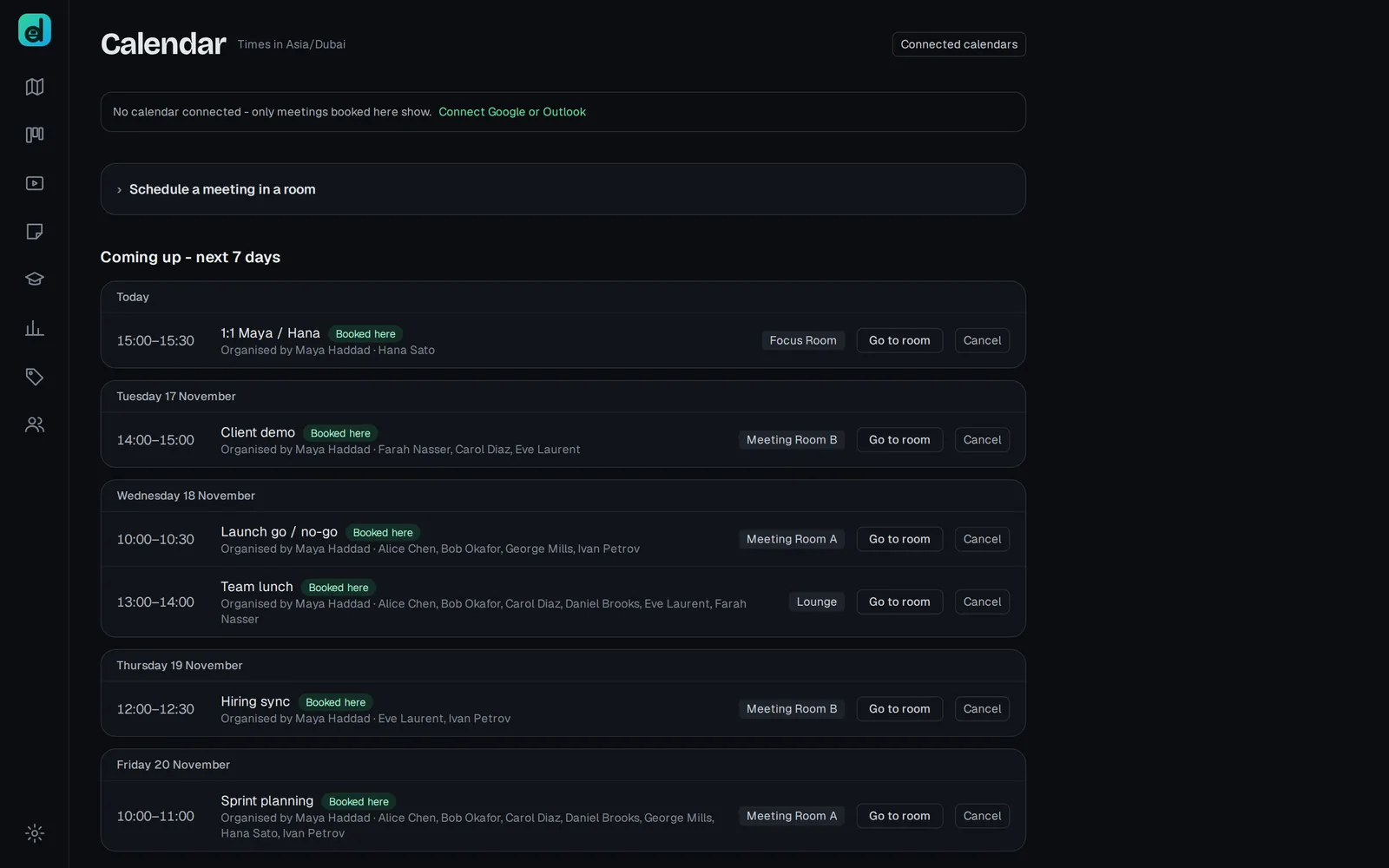
A meeting starts the moment two or more people are in a meeting room together. For anything planned, book the room so it is free and people are reminded.
- Open Calendar from More and use Schedule a meeting in a room.
- Give it a Meeting name, a time and a Length, invite people, pick a Room and press Book room.
- Everyone invited is reminded in the office, and a Join button walks them into the room when it is about to start.
For a meeting that happens every week or every morning, an admin can attach it to the room itself, in Rooms with Add meeting. A daily standup then needs no booking at all.
Getting people in
- Walk in. Standing in the room is being in the call. There is nothing to dial.
- Call someone from the roster. It rings them, and when they answer you are both put in a room.
- Wave first if you are not sure they are free. It is a soft knock before you interrupt.
- From someone's card, Invite rings them and brings them to the room you are in.
For a conversation that should not be walked into, lock the room. Others then Knock, and anyone inside can Let in.
During the meeting
The room controls handle your microphone, camera, Share screen, recording, chat and the board. Full screen expands the meeting: speakers in a grid, the one talking spotlighted, chat beside them. Switch between Grid view and Focus view as it suits.
- When someone shares a screen, others can Draw on the shared screen to point at things.
- Mute everyone else quietens a noisy room; each person can switch their mic back on.
- React sends a quick emoji without interrupting.
Use the board
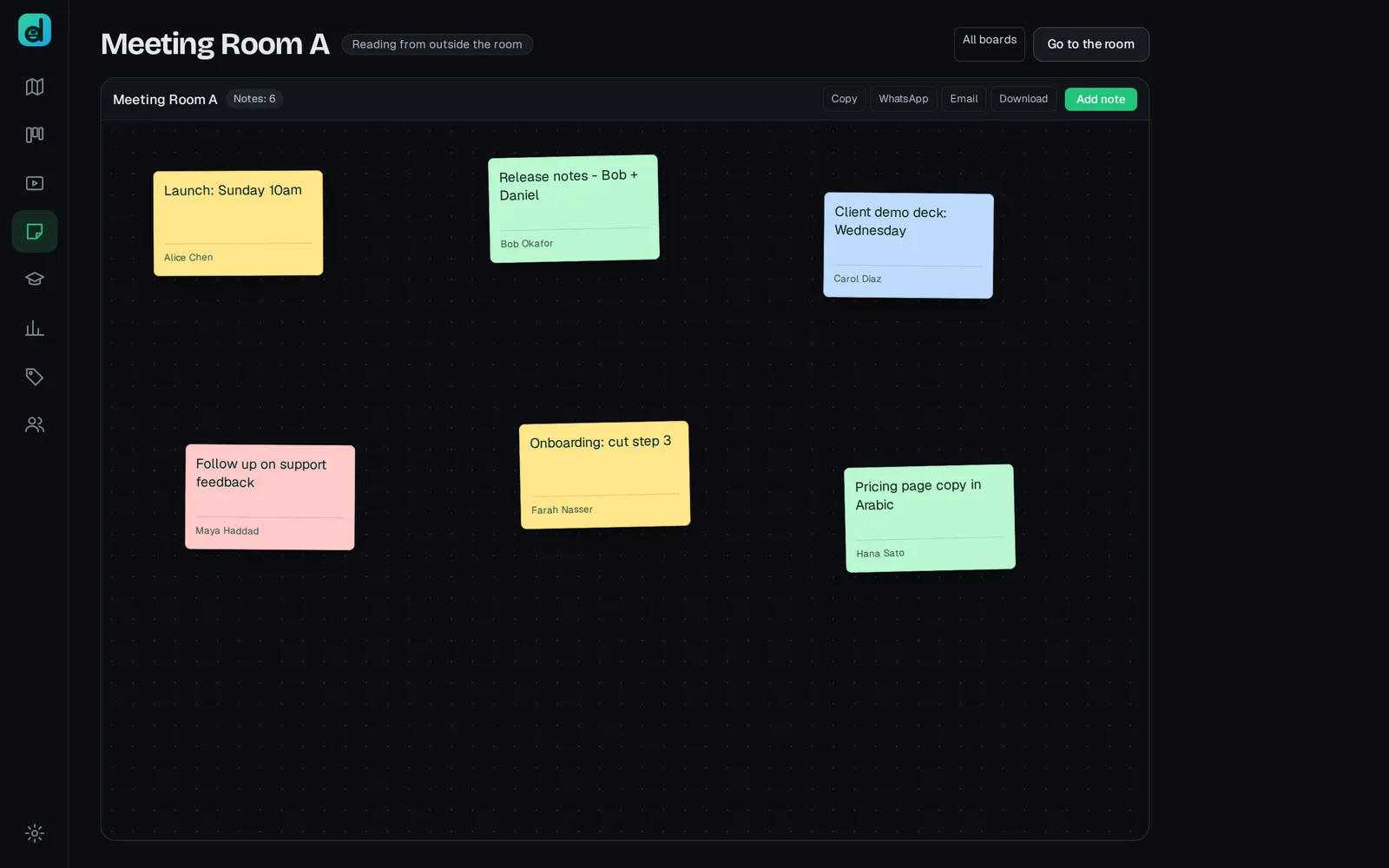
Every room has a whiteboard. It belongs to the room, not to the meeting, so what was written is still there next week. Open it with Board and write with Add note.
You can read and add to a board without walking into the office, from Boards. To send it on, use Copy, WhatsApp, Email or Download.
Record, with consent
On an Office plan, Deskly AI Assistant comes to the door when a meeting starts and asks each person whether it may take notes. It only hears the people who say yes, and anyone can say no without stopping the meeting. Press Notes to watch Live notes build during the meeting. If a part of the conversation should not be noted, anyone can press Pause notes; the recording carries on and everyone sees who paused.
Say at the start that the assistant is asking, and why. A quick "yes" from the person running the meeting gets the recording started for everyone who agrees.
After: from summary to follow-ups
When the summary is ready, the person whose browser recorded the meeting is asked whether to add it to the room's whiteboard. Add to whiteboard puts the summary up as sticky notes everyone in the room can see, and uses no AI credits. Action items can then be filed as tasks: with Azure DevOps connected, Send to Azure DevOps on a note files it as a work item.
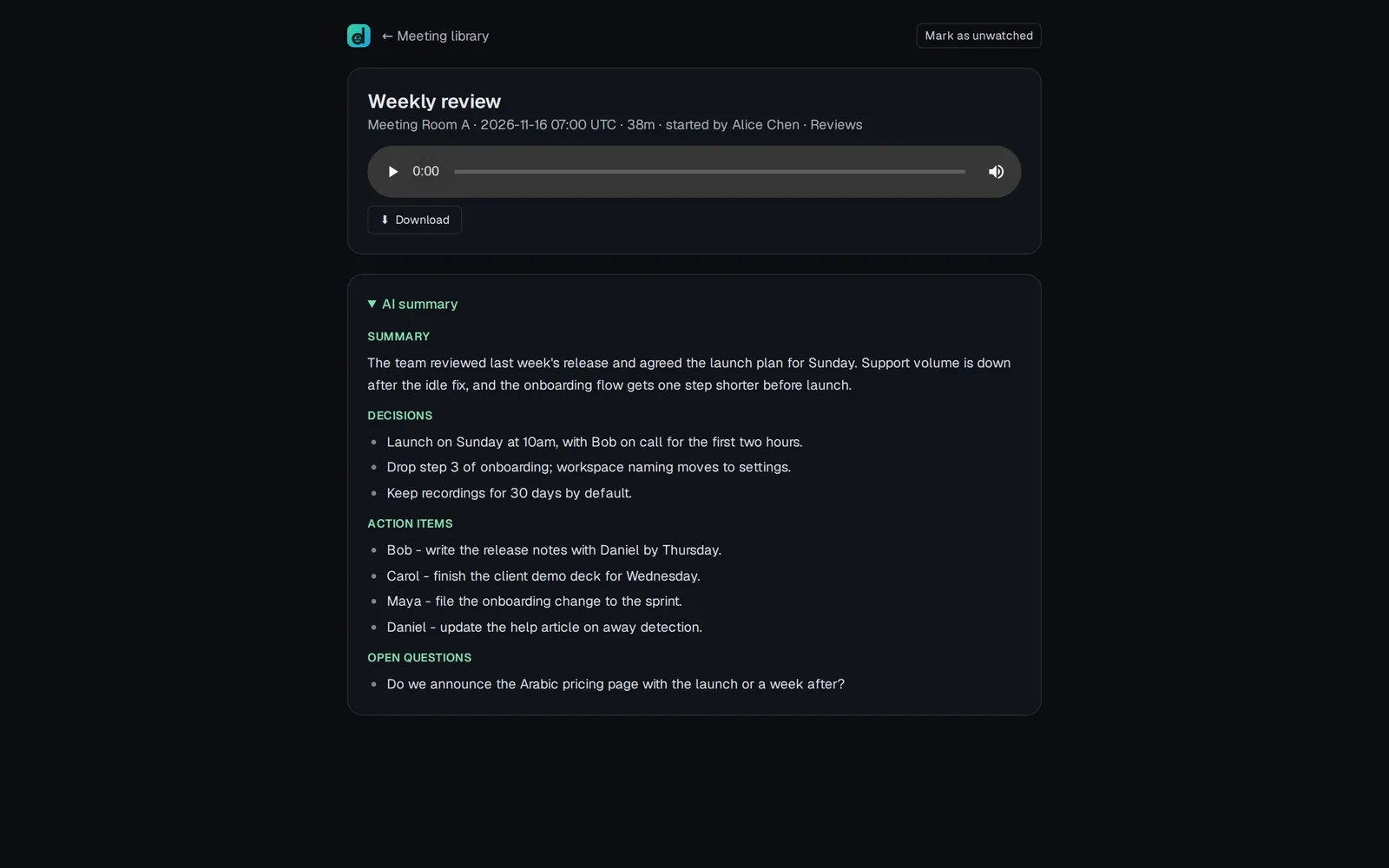
The recording itself is in Meeting library, with the summary and the transcript. Everyone who was there can watch it; for anyone who missed it, open Sharing and Share it with them, or Share with everyone.
Finally, close the loop on the time. When people pick what they are working on afterwards, Deskly suggests tasks mentioned in the meeting's calendar event or in the room's chat, so the follow-up work lands against the right task from the start.