Recording a meeting, and its AI summary
How to record a meeting in a room, how the AI assistant asks before it listens, what you get afterwards, who can watch or delete it and how long it is kept.
4 min read
Before you start
- Recording is part of the Office plans and Enterprise, and of the free trial. On Free, pressing Record answers "Recording is not on your plan".
- You record a room, never the open floor. Step into a meeting room, focus room or lounge first.
- One recording runs in a room at a time.
Let the assistant in
When two or more people are in a meeting room, Deskly AI Assistant waits at the door and asks everyone in the room: "May I take notes for this meeting?"
- Each person chooses Yes, let Deskly AI Assistant hear me or Not now.
- Recording starts as soon as one person says yes. It only hears the people who said yes: a no keeps that voice out of the recording, the transcript and the notes.
- In a room where nobody has asked yet, press Invite AI Assistant in the room controls.
- To change your answer, press the same button, which now reads AI Assistant hears you, and it stops hearing you.
The answers belong to the meeting, not to you. Walk out and back in and it asks again.
Live notes during the meeting
Press Notes in the room controls to open Live notes. The first notes appear after about a minute and keep updating. Show transcript so far shows the words behind them.
Anyone in the room can press Pause notes. The AI stops taking notes for the rest of the meeting, the recording carries on, and everyone sees who paused them. Resume notes starts them again from that moment.
The summary
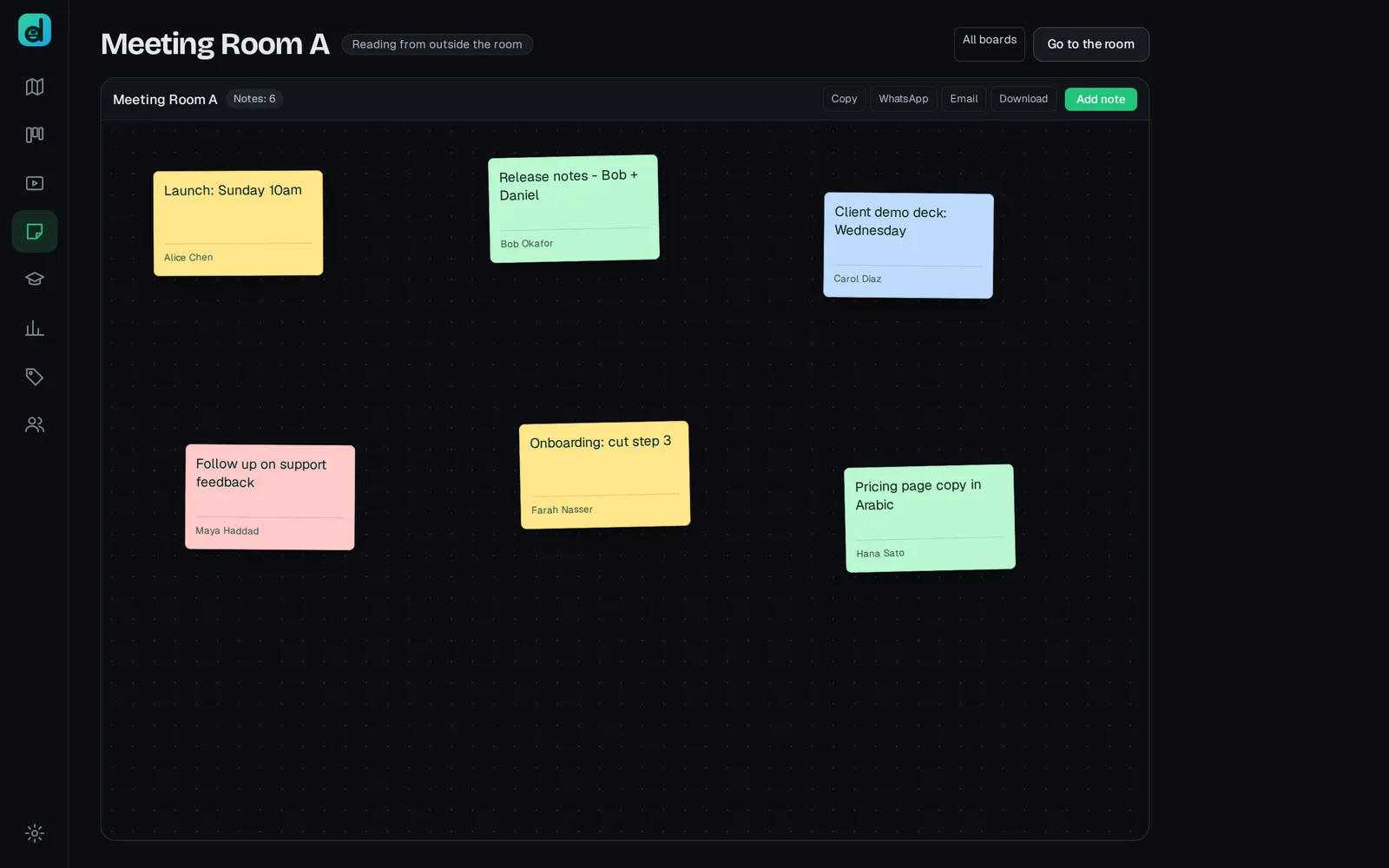
When the summary is ready, the person whose browser made the recording is asked whether to add it to the room's whiteboard. Add to whiteboard puts it up as sticky notes everyone in the room can see, and uses no AI credits. Read the summary first opens it.
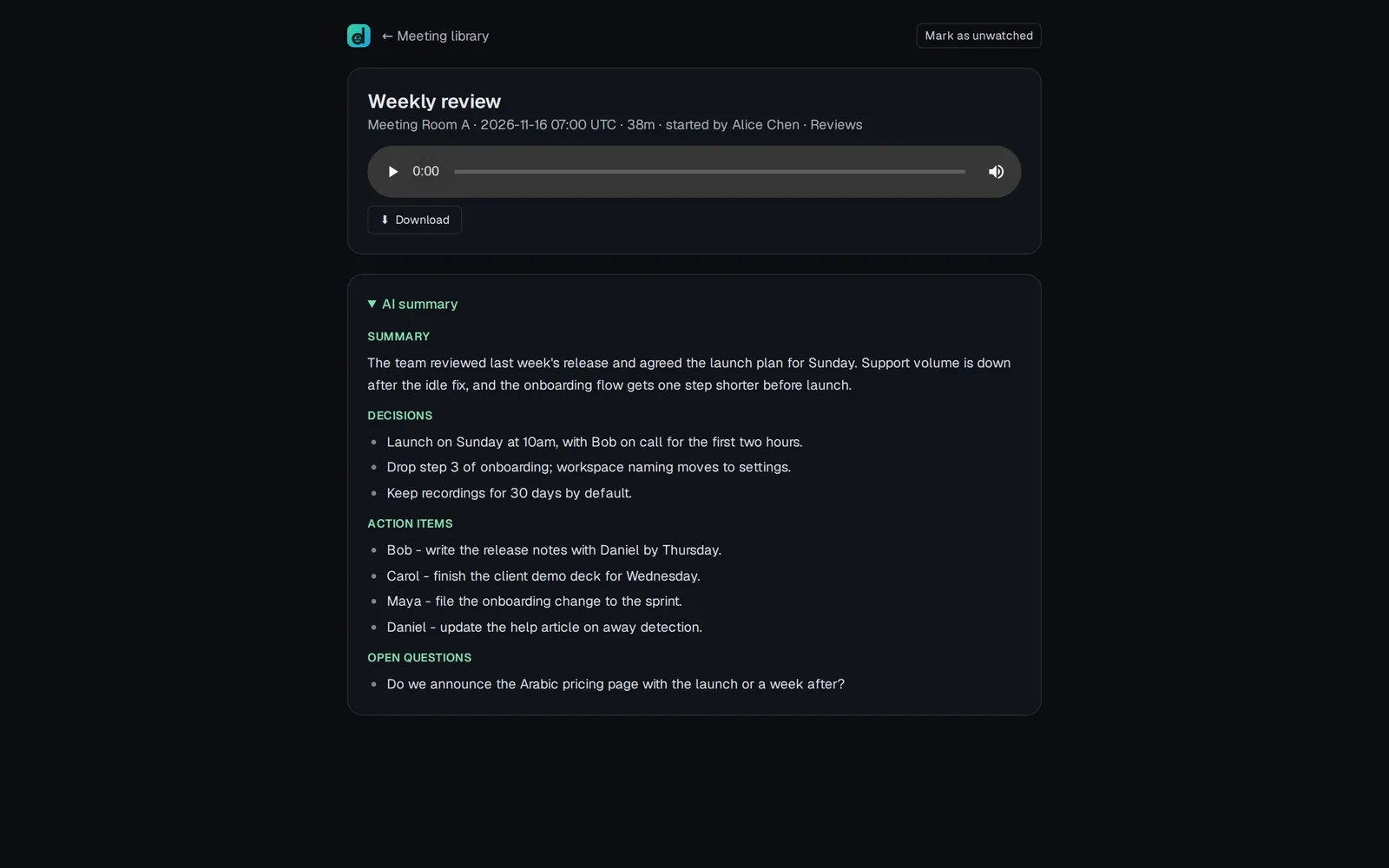
Every recording is in Meeting library. Its page has the audio, Download, the AI summary and the Transcript.
Sharing a recording
Everyone who was in the meeting can already watch it. To show it to someone else:
- Open the recording in Meeting library.
- Under Sharing, pick the people (hold Ctrl or ⌘ to pick several) and press Share.
- Or press Share with everyone to open it to the whole workspace.
Only people who were in the meeting can change who it is shared with. Others find it under Shared with me.
Deleting a recording
The person who started a recording can delete it, and so can an admin. Admins find every recording in the workspace under Admin → Recordings, and can delete one there without being able to play it.
- Open the recording and press Delete recording, or press Delete recording next to it under Admin → Recordings.
- Confirm. The recording, its transcript and its AI summary are gone for everyone straight away.
Notes already added to a whiteboard from the summary stay on the whiteboard. AI credits spent on the recording are not given back. A recording still being made or processed can be deleted once it has finished.
For 6 days a deleted recording can be brought back: press Restore under Recently deleted, linked at the bottom of Meeting library. After that it is erased for good. Admins see who deleted and restored each recording in the Deletion log.
How long recordings are kept
On Office plans a recording, with its transcript and summary, is deleted automatically 30 days after it was made; on Enterprise, after 365 days. The date is on every recording, and you are told three days before. Extended storage, bought on Plan and billing, keeps them for 365 days.
Transcripts, summaries and live notes spend the office's AI credits. If the office runs out, the meeting is still recorded; notes and transcripts pause until the pot refills on the 1st or an admin adds credits.
Questions
Why are there two recordings of one meeting? The recording is made in the browser of the first person who said yes. If they leave, the next person who agreed carries on with a new recording.
The assistant is still waiting at the door. Nobody in the room has said yes yet. Press Let it in, or Invite AI Assistant.
There is a recording but no summary. If Meeting library says "Recording works. Transcripts and summaries aren't set up yet.", AI keys are missing on that server. Ask an admin.