The Deskly desktop app
Where to download Deskly for Windows and Linux, how to install it, and what it adds to the office you already use in the browser.
3 min read
What it is
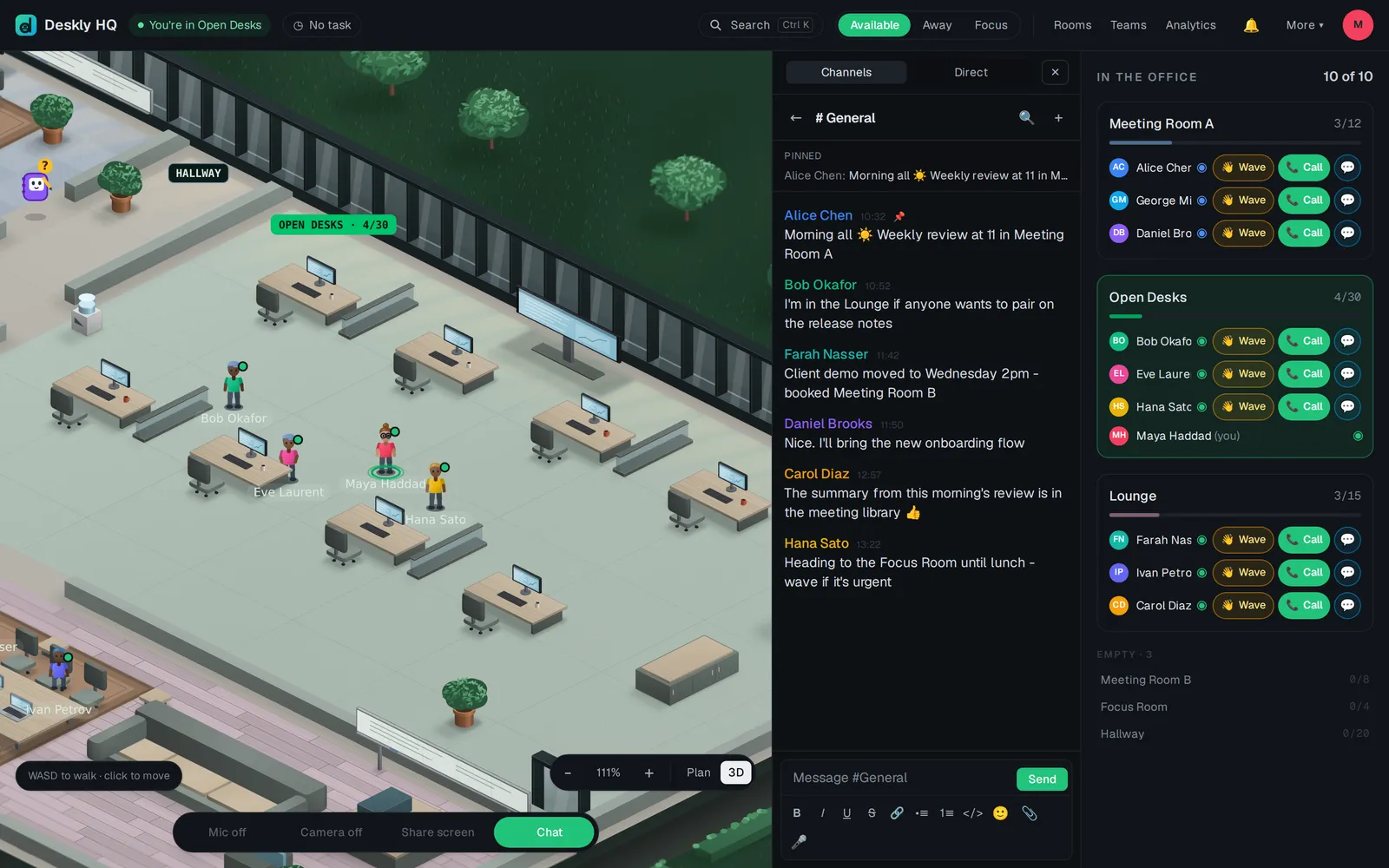
The desktop app is the same Deskly you use in the browser, in a window of its own. Your office, rooms and settings are all there when you sign in. It is free on every plan, including Free.
It is available for Windows and Linux. macOS is coming soon.
What it adds
- Stays in the office. Closing the window hides it to the system tray. Your presence, calls and connection carry on in the background.
- System notifications. Waves, mentions, calls and invitations arrive as your system's own, and the unread count sits on the taskbar.
- Better screen sharing. Pick a screen or a window from a clear list. On Windows you can share the screen's sound too.
- Microphone and camera for Deskly only. Any other site that asks is refused.
- Starts at login. Turn it on from the tray menu and you are in the office when your computer starts.
- Links open in the app.
deskly://links open the right place in the app; any other link opens in your usual browser. - Updates itself. New features reach the app as soon as they ship, so there is no need to download it again.
Install on Windows
You need Windows 10 or newer, 64-bit.
- Open the download page and press Download for Windows.
- Run the installer.
- If Windows shows "Windows protected your PC", choose More info, then Run anyway. This appears because the installer is not code-signed yet.
- Sign in with your usual email and password, or with Google.
Install on Linux
You need a 64-bit (x86_64) Linux computer.
- Open the download page.
- Choose Most distributions for the AppImage, or Debian and Ubuntu for the .deb package.
- For the AppImage, allow the file to run as a program, then open it. For the .deb, open it with your package installer.
- Sign in.
The app opens your office online, so it needs an internet connection. A microphone and camera are only needed for meetings.
Questions
Is there a Mac version? Not yet. It is listed as coming soon on the download page. Until then, use Deskly in your browser.
Do I need to reinstall for new versions? No. Installed apps update themselves. The download page keeps the version history.
I closed the window. Am I still in the office? Yes. Closing the window hides it to the tray, and you stay in the office. Open it again from the tray.