Editing the floor with Mapmaker
Who can change the office floor plan, what you can draw and place, and how a saved plan reaches everyone.
5 min read
Who can edit, and where
Mapmaker is the floor plan editor. Admins can use it, and so can anyone whose role has Edit the floor plan ticked in Roles.
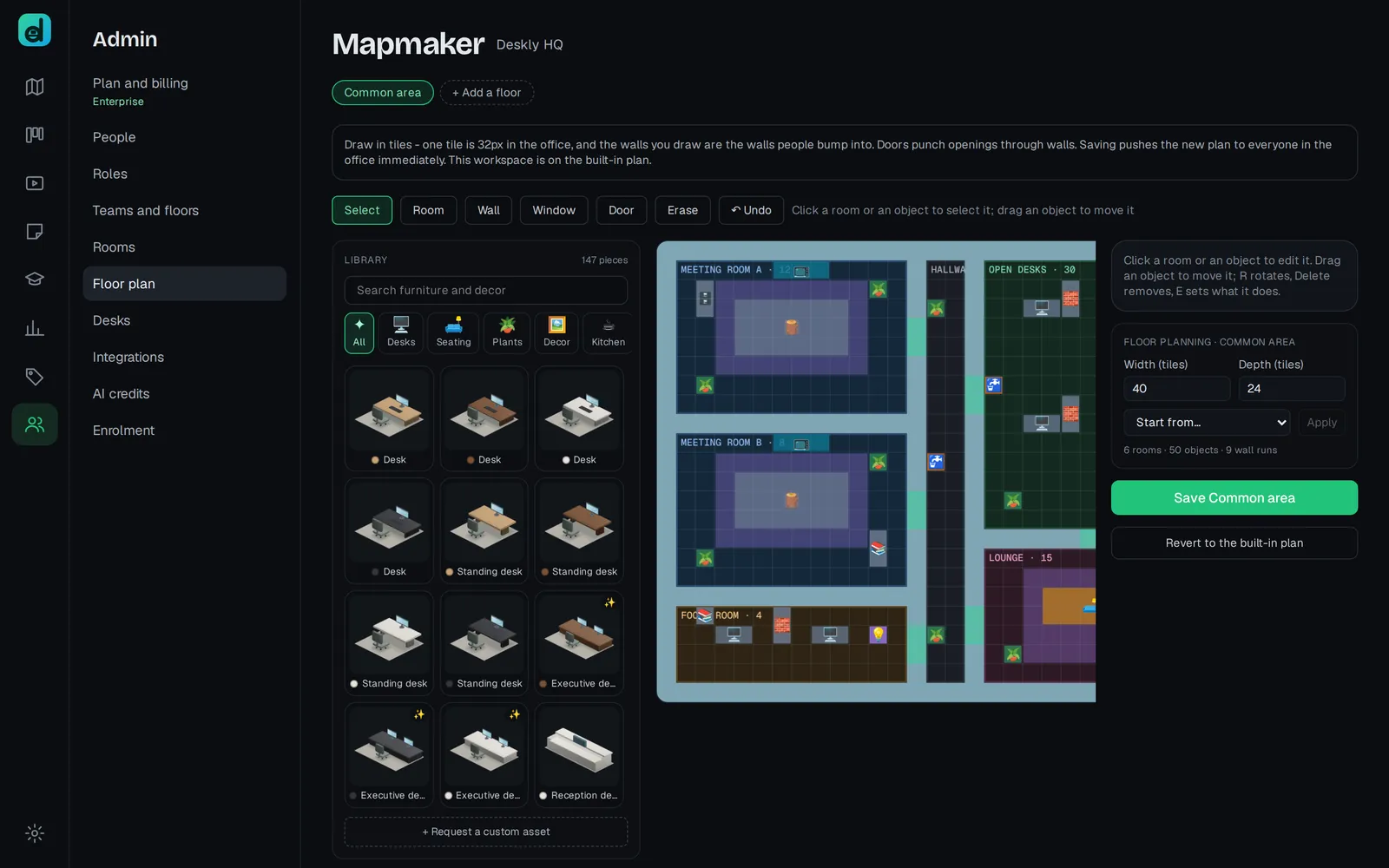
Open it from Admin, then Floor plan. Admins also find Floor plan under More in the office. There is one tab for each floor. Add a floor takes you to Teams and floors, because a floor is a team; the Free plan has one floor.
Adding a room
- In Add a room, above the plan, click the type you want - Meeting room, Focus room, Lounge, Desks, Hallway or Classroom. The type matters: meeting rooms, focus rooms, lounges and classrooms carry audio and a whiteboard, while desks and hallways do not.
- Drag on the plan. The room is outlined as you go, with its size; the outline turns red if it would cross another room's edge.
- Let go. The room gets walls and a door facing the middle of the floor, and is selected so you can name it. Untick Add walls and a door to draw just the room.
A room can sit in an empty space or wholly inside another room - a booth inside a lounge, say - but never across another room's edge.
Moving, resizing and replacing rooms
With Select, click a room to pick it, then:
- Drag the room by its name, or by an empty spot, to move it. Its walls, doors, windows, furniture and any room inside it come too. Walls it shares with a neighbour stay put.
- Drag a handle on its edge or corner to resize it. If it has walls of its own, they are rebuilt round the new size.
- Arrow keys nudge it a tile at a time.
- Put walls round it adds walls wherever the room has none, and a door if it has none.
- Remove room asks whether to take its walls and furniture with it or leave them.
To replace a room, either change its type in the panel beside the plan, or remove it and draw a new one in its place.
Select a room to change its name, its kind and its Capacity.
Walls, windows and doors
- Wall - drag to add wall tiles, in the Wall type you pick.
- Window - drag over a wall to set windows into it.
- Door - drag over a wall to open a way through.
- Erase - drag over walls, doors or furniture to remove them.
Furniture and objects
The Library beside the plan holds the furniture and decor. Search it, or filter by category, then drag a piece onto the plan - or click it, then click the plan. Esc stops placing.
With an object selected:
- R rotates it and the arrow keys nudge it.
- Delete removes it.
- E sets what it does when someone walks up and presses E: Nothing, a Hotspot that shows a note and an optional link, a Meeting point that takes people into a room you choose, or an Arcade that opens the office games.
Ctrl Z (⌘Z on a Mac) undoes.
Desks are read from the plan, so moving a desk moves the seat that goes with it.
Saving
Nothing changes for anyone until you choose Save followed by the floor's name. The page shows Unsaved changes until then. A saved plan reaches everyone in the office straight away, without a reload.
- Start from… replaces the plan with a built-in layout or another floor's. Choose Apply; it still needs saving.
- Revert to the built-in plan throws away this floor's edits.
- Show preview draws the floor as the office will, updating while you edit.
Premium pieces
Starred furniture and wall finishes come with the Office plan. On the Free plan they show as locked, and a plan that uses them will not save. On the Office plan you can also Request a custom asset for something the library does not have, and follow the request in Help.
Questions
What happens to a room's history if I remove it? Time already recorded against the room is kept. The room simply stops appearing on the floor.
The plan will not save. The message says why: a floor needs at least one room, a meeting point must lead to a room that is still on the plan, and premium pieces need the Office plan.
I only want to rename a room. Admin, then Rooms is quicker. The new name appears for everyone in the office at once.