Sharing your screen
How to share your screen with the people in your room, draw on what someone shares, and fix the usual reasons sharing does not work.
4 min read
Before you start
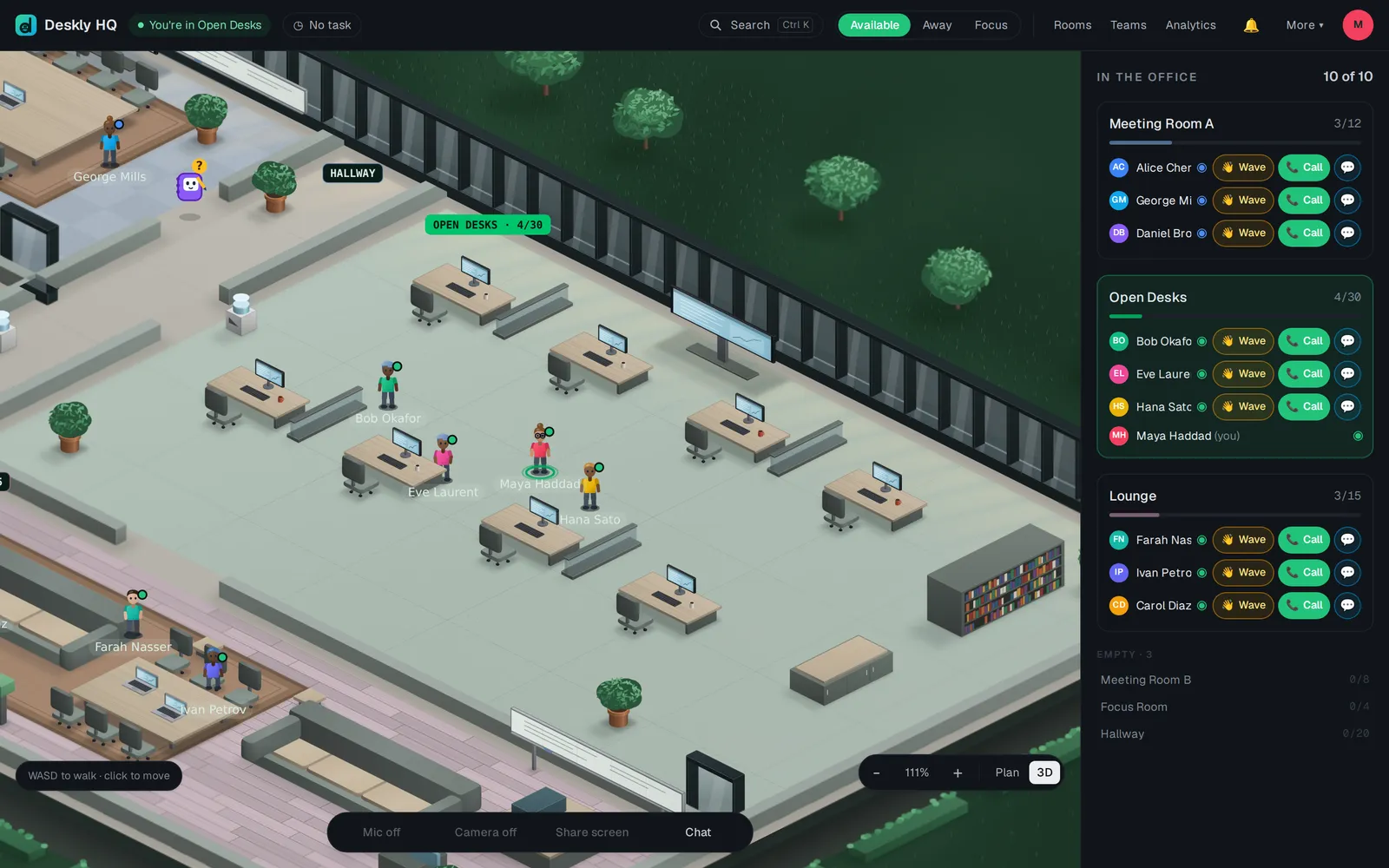
Sharing belongs to a room. You share with whoever is in the same meeting room, focus room, lounge or classroom as you. On the open desks and in the hall there is nobody to share with, so the button stays greyed out.
You also need to be present: while you are Away, sharing is switched off along with your microphone and camera.
Share your screen
- Walk into a meeting room, focus room, lounge or classroom.
- In the room controls, choose Share screen. On a phone the button is called Share.
- Your browser asks what to share - the whole screen, one window or one browser tab. Pick one and confirm.
- The button now reads Sharing screen. Choose it again to stop, or use your browser's own stop button.
Deskly asks the browser to include sound with the share. Whether you are offered that depends on your browser and on what you chose to share.
Walking out of the room ends your share, the same way it turns off your microphone.
What the others see
Everyone in the room sees "is sharing a screen" and the picture in the meeting view. Switch to Focus view to make it the large tile, or Pin it so it stays there whoever is talking. Full screen gives it the whole window.
Drawing on a shared screen
While a screen is being shared, anyone in the meeting can point at something on it.
- Choose Draw on the shared screen. The view switches to the shared screen.
- Draw with the mouse or your finger. Everyone in the meeting sees the strokes, in the same place on every screen size.
- Strokes fade by themselves. Clear the drawing removes them at once, and Stop drawing puts the pen down.
On a slow connection
Lite mode keeps the shared screen and drops the cameras, so the screen gets the bandwidth. Turn it on from More, then Lite. If you are the one sharing while Lite mode is on, Deskly sends fewer frames a second and keeps the resolution, which suits slides and code.
Common problems
The Share screen button does nothing. Hold the pointer over it. "Step into a room to share your screen" means you are on the open floor. Walk into a room first. If you are in a room, check that your status is not Away.
I picked a window and the others see black. Some apps protect their windows from capture. Share the whole screen, or a browser tab, instead.
My browser never asked what to share. Screen recording permission is switched off for the browser at the operating-system level. On macOS it is under Privacy & Security, Screen Recording. Allow the browser, then restart it.
The shared screen is blurry on a slow line. Turn on Lite mode. The cameras stop and the screen gets what bandwidth there is.