Rooms, meetings and who can hear you
Which rooms carry sound, how walking in starts a call, how to lock a door, and what to do on a weak connection.
5 min read
Which rooms carry sound
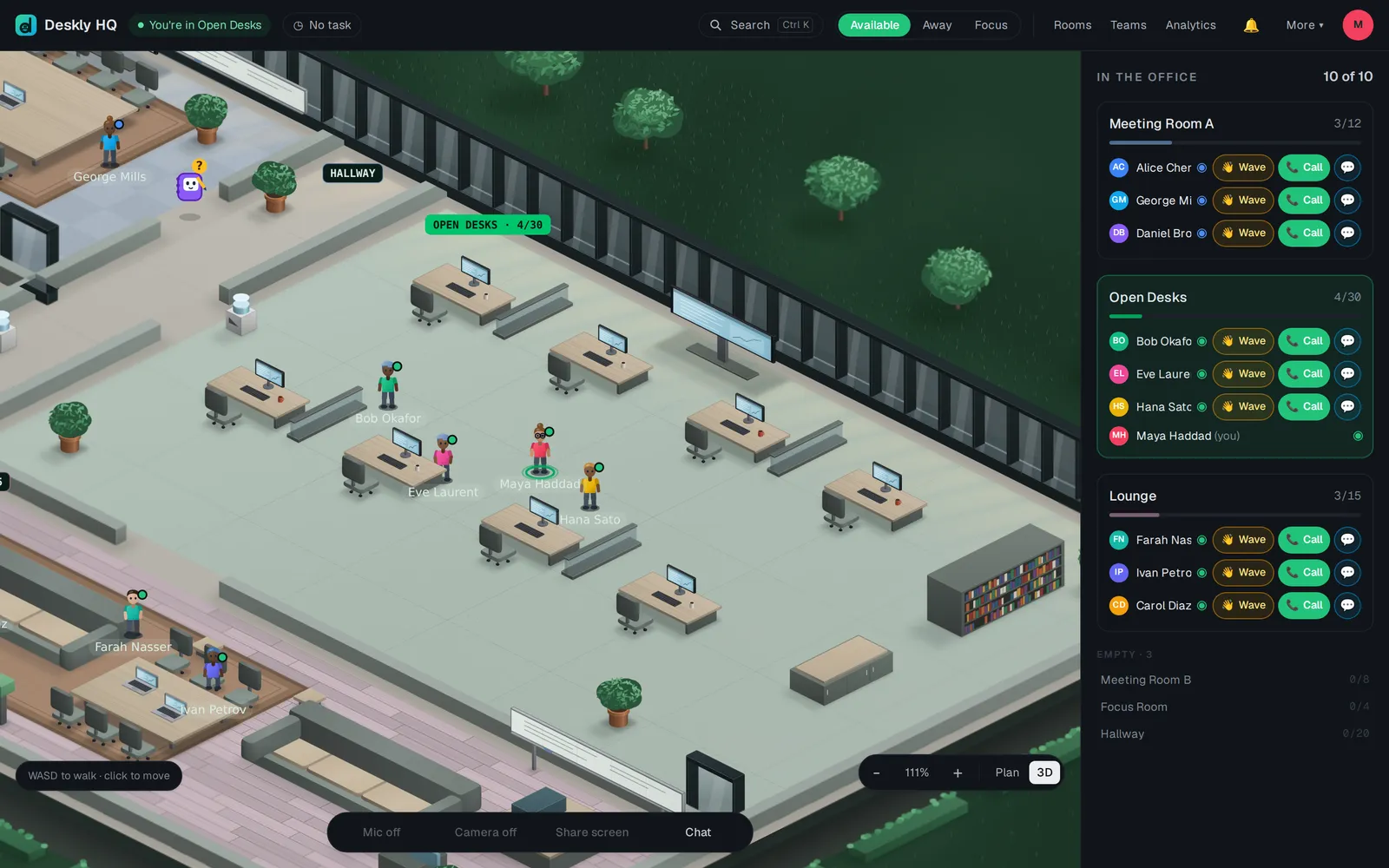
Audio belongs to rooms. The open floor carries none, on purpose: a busy office should not be a wall of noise.
- Meeting room, focus room, lounge and classroom have their own audio. Everyone in the room hears everyone else at full volume.
- Desks and the hall are silent. You cannot switch your microphone on there.
Joining a call: walk in
There is nothing to start and no link to send.
- Walk into the room. The audio connects by itself.
- Choose Mic off to turn your microphone on. The first time, the browser asks for permission.
- Choose Camera off to turn your camera on, if you want it.
- To leave, walk out. Your microphone goes off as you step back onto the floor.
When anyone else is in the room with you, the meeting view opens. Full screen makes it bigger, Back to the office or Esc shrinks it again. You can switch between Grid view and Focus view, Pin one person, React with an emoji, and Mute someone - they can switch their microphone back on.
Locking a room
Meeting rooms, focus rooms and lounges can be locked. Classrooms and the open floor cannot.
- Inside the room, choose the lock, Lock the room - others knock to come in.
- Someone who walks up sees that the room is locked and can choose Knock.
- Everyone inside sees who is knocking, with Let in and Not now.
The lock lifts by itself once everyone who was inside has left.
Recurring meetings and room bookings
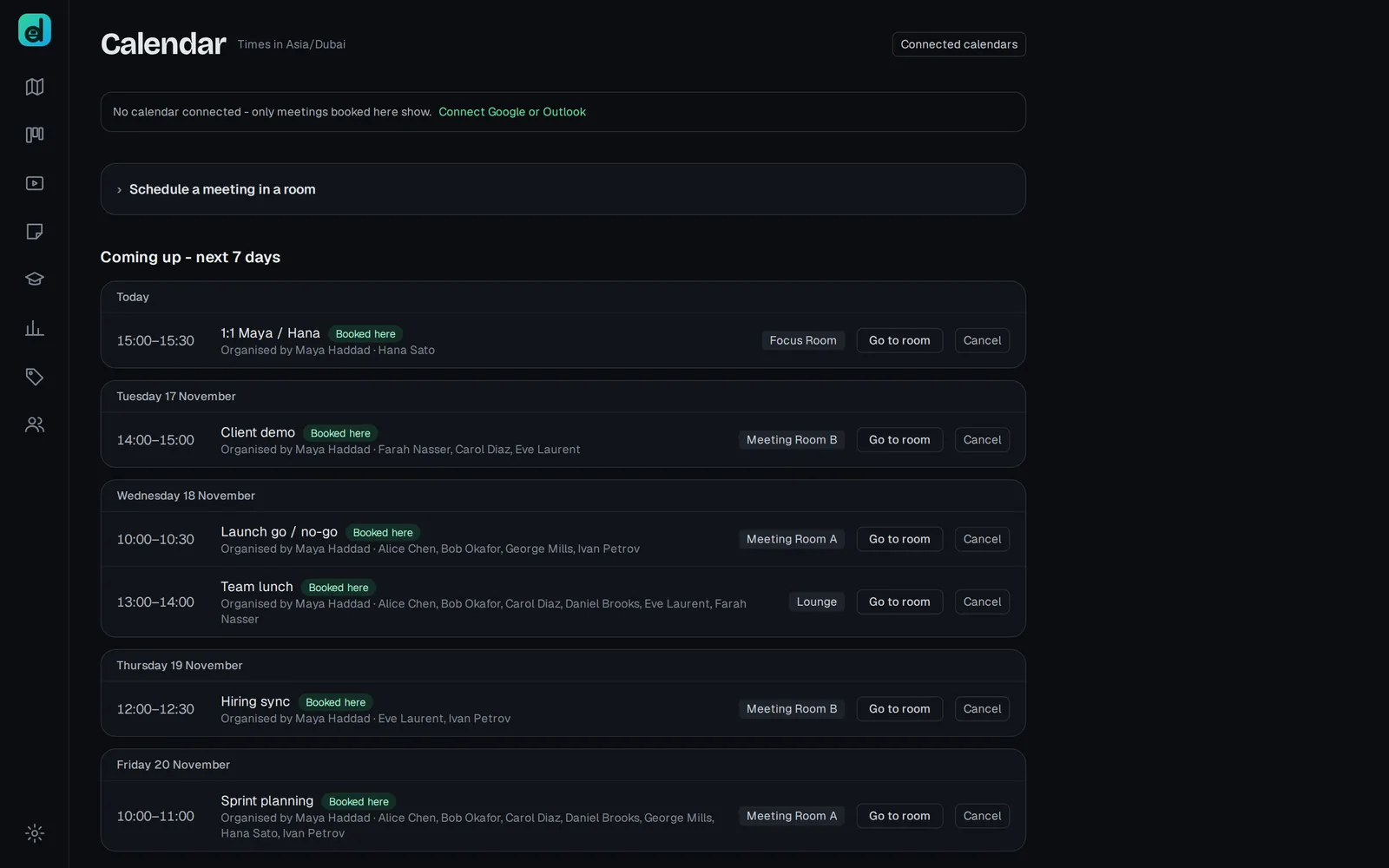
Admins can schedule a recurring meeting in Admin, then Rooms: pick the days, start time and length, then Add meeting. Just before it starts, everyone in the office sees a banner with Join, which walks them into the room.
Any member can book a room for a single meeting:
- Open More, then Calendar.
- Under Schedule a meeting in a room, fill in Meeting name, Room, Date, Starts and Length.
- Add people under Invite people, then choose Book room.
Everyone invited gets a reminder in the office.
On a weak connection: Lite mode
Lite mode drops the cameras and keeps the voice and the shared screen. Turn it on from More, then Lite. When your connection struggles for a while, Deskly offers it with a Switch button rather than turning your camera off for you.
Common problems
I cannot hear anyone on the open floor. That is correct. Walk into a meeting room, focus room, lounge or classroom.
The microphone button is greyed out. Hold the pointer over it for the reason: "Step into a room to use the mic", "Muted while you are away", or "Muted by the instructor" in a class.
My microphone is blocked. The browser asks once. If you refused, the browser remembers it and Deskly cannot undo it. Allow the microphone for the site in your browser's settings and reload.
The camera button does nothing. Cameras are off in Lite mode. Choose Lite on in More to turn it off.
I walked into a room and stopped at the door. It is locked. Choose Knock and wait for someone to let you in.