Hours, tasks and your tracker
How Deskly counts hours, how to put them against Jira or Azure DevOps tasks, how people are matched to their tracker accounts, and who can read what.
5 min read
Where the hours come from
Hours come from presence. The server records when you were in the office, in which room, and whether you were active. Idle, Away and Offline never count, so a browser left open in an empty room is not work.
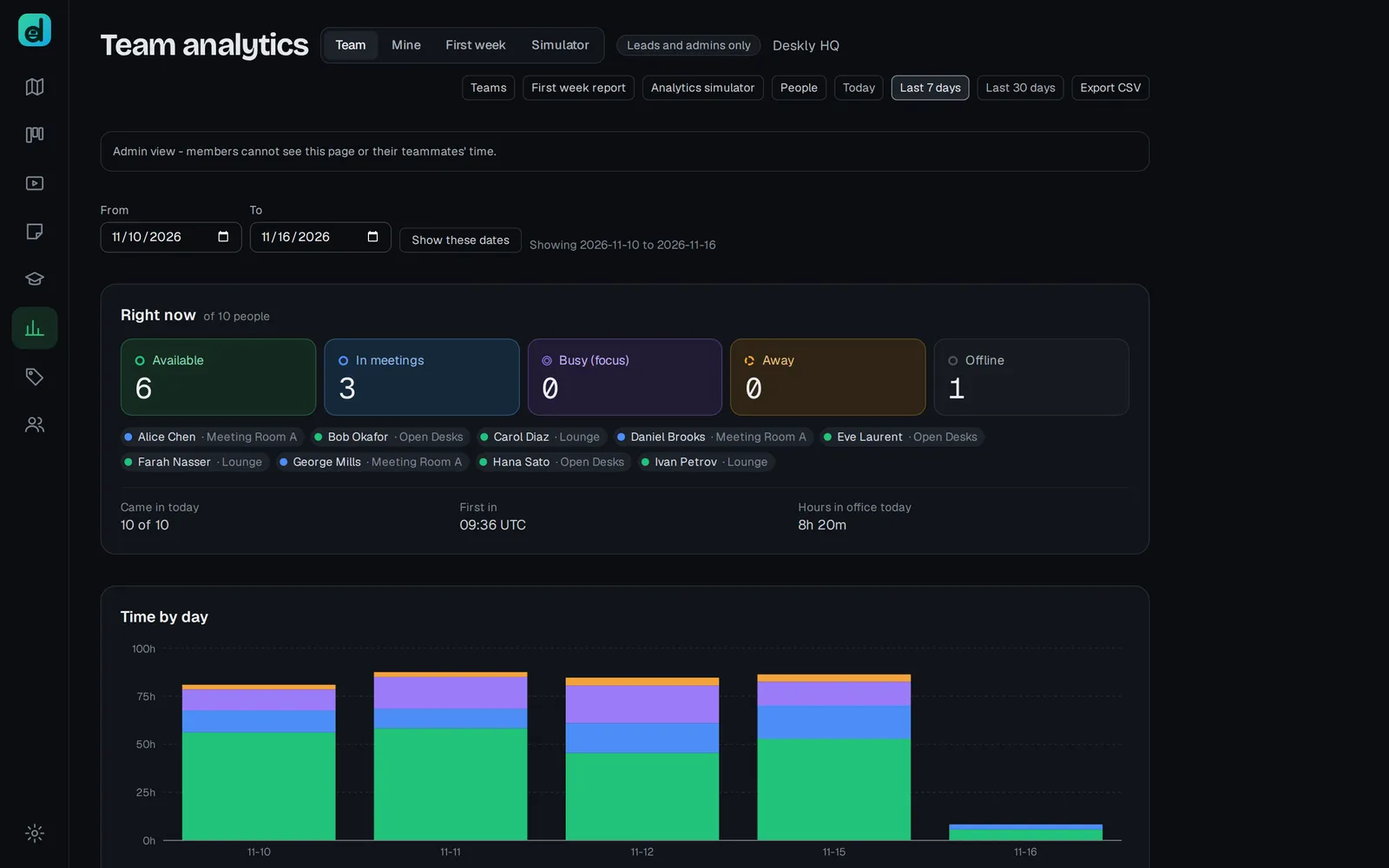
Analytics shows these hours. Everyone has My analytics, which only they can see. Leads see Team analytics for the floors they lead, and admins for the whole office. Free keeps 7 days of history, Office plans a year.
Set your own day in Settings, under Working hours, and add holidays under Time off with Add time off. Hours are measured against your working day in your timezone, Monday to Friday, less time off. Anything worked on a day off counts as overtime.
Connect a tracker
Time on tasks and task boards are part of the Office plans and Enterprise. Deskly works with Jira and Azure DevOps. An admin connects one in Integrations:
- For Jira, enter the Site URL, the Account email and an API token created at id.atlassian.com.
- For Azure DevOps, enter your organisation's URL and a personal access token with Work Items (read & write). Read alone can list work but cannot file any.
- Press Choose projects and tick the ones to track. Anything not ticked is invisible in Deskly.
Credentials are encrypted before they are stored and never shown again.
Match people to tracker accounts
Under Who is who, each person in the office is linked to their tracker account. Deskly never guesses.
- Press Match by email to link everyone whose email is the same in both.
- Correct anyone the tracker knows by a different account.
- Clear the box to unlink someone.
Until someone is matched, their task picker cannot find their work.
Say what you are working on
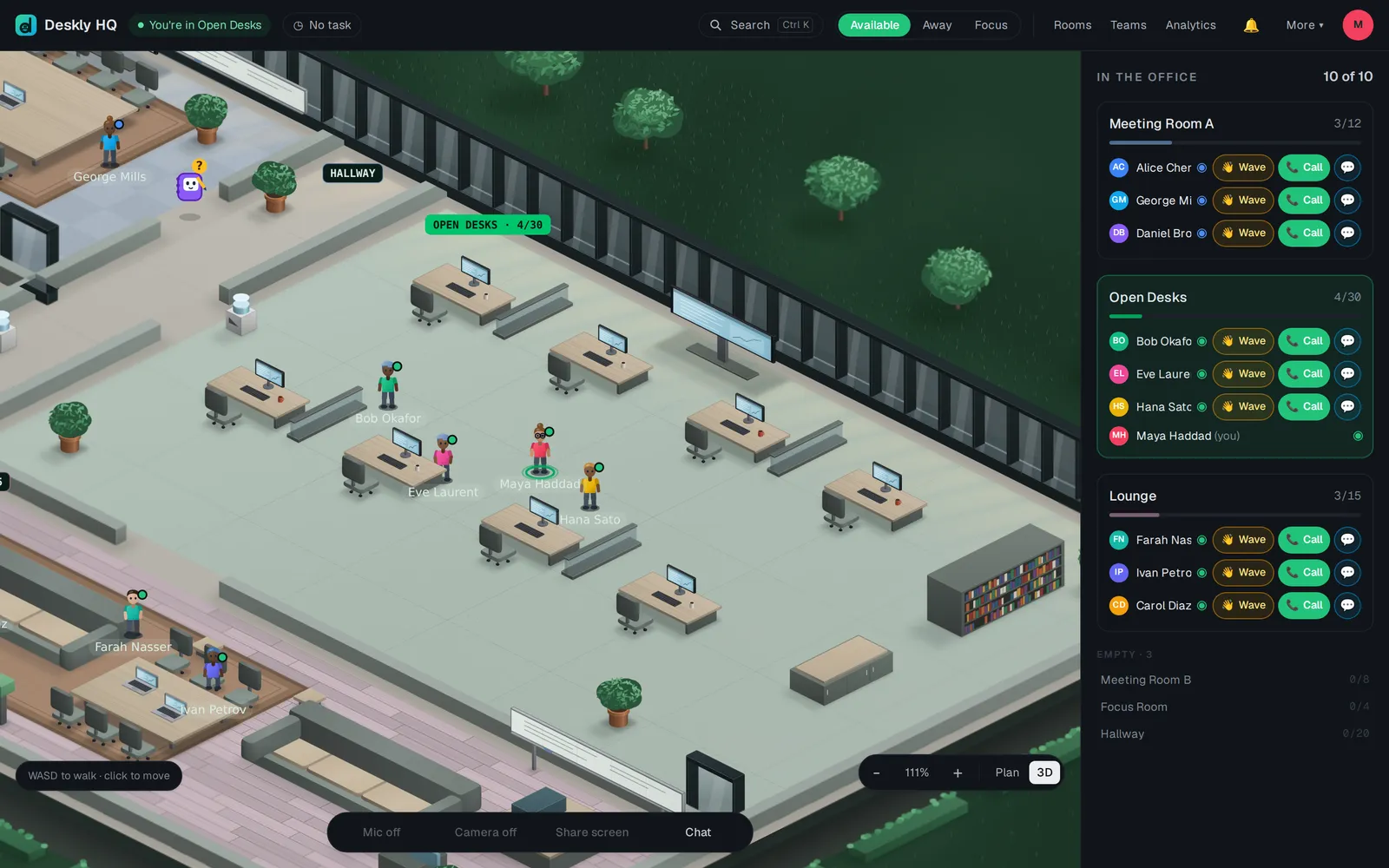
- In the office, press the task button at the top. It reads No task until you pick one.
- Under What are you working on?, pick a task. Suggested tasks come from your calendar, the room's schedule or the room's chat.
- Press Stop, or pick another task, when you change.
The hours on a task are the overlap between that choice and your active presence, so task time can never exceed office time.
Read the totals
Time on tasks shows hours per person and task for Today, Last 7 days or Last 30 days. Not attributed is the honest gap: time someone was active and never put against a task.
On Jira the page shows two columns, Seen in the office and Logged in the tracker, with Log to write the difference as a worklog. It is written with your own API token, added under My Jira account, so the worklog says who it belongs to. Nothing is written without somebody pressing the button. Azure DevOps keeps one running total per work item, so there is nothing to compare there.
Task boards show everyone's work in To do, In progress and Done, read from the tracker.
Questions
The task picker is empty. No tracker is connected, or your account has not been matched yet. An admin links it in Integrations.
Can my teammates see my hours? No. Only you see My analytics. Leads and admins read the totals.